連結成分ラベリング
連結成分ラベリング(連結成分解析、ブロブ抽出、領域ラベリング、ブロブ発見、領域抽出とも呼ばれる)は、画像内の連結成分に一意のラベルを付けます。ラベリング処理は、画像を左上から右下へピクセル単位で走査し、連結したピクセル領域、すなわち同じ強度値の集合を共有する隣接ピクセルの領域を識別します。たとえば、この画像内のオブジェクトを見つけてみましょう:

この画像内のオブジェクトを識別するには、次のコマンドを使います:
magick objects.gif -connected-components 4 -auto-level -depth 8 objects.png
検出されたオブジェクトには一意のラベルが付きます。検出されたオブジェクトを可視化するには auto level を使います:
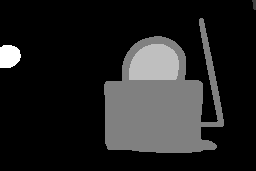
オブジェクトの統計は確認に役立ちます。表示するには、次のコマンドを使います:
magick objects.gif -define connected-components:verbose=true -connected-components 4 objects.png
ソース画像で 5 つのオブジェクトが次の統計とともに検出されました:
Objects (id: bounding-box centroid area mean-color):
  0: 256x171+0+0 119.2,80.8 33117 srgb(0,0,0)
  2: 120x135+104+18 159.5,106.5 8690 srgb(255,255,255)
  3: 50x36+129+44 154.2,63.4 1529 srgb(0,0,0)
  4: 21x23+0+45 8.8,55.9 409 srgb(255,255,255)
  1: 4x10+252+0 253.9,4.1 31 srgb(255,255,255)
ヘッダ行なしでオブジェクトを表示するには -define connected-components:exclude-header=true を加えます。-define connected-components:exclude-ids=true を加えます。verbose な連結成分オブジェクトをソートするには -define connected-components:sort=area | width | height | x | y を使います。既定では、オブジェクトは面積の降順で列挙されます。ソート順を指定するには -define connected-components:sort-order=increasing | decreasing を加えます。
4 近傍ではなく 8 近傍を訪れるには -connected-components 8 を使います。既定では、一意のオブジェクトの一部となるには近傍の色が完全に一致する必要があります。色が近いピクセルをオブジェクトの一部に含めるには -fuzz オプションを使います。
小さなオブジェクトを、より大きな近傍とマージして除去したいことがあります。その場合は、次のコマンドを使います:
magick objects.gif -define connected-components:area-threshold=410 -connected-components 4 \
  -auto-level objects.jpg
期待される結果は次のとおりです。小さなオブジェクトが背景とマージされている点に注目してください。
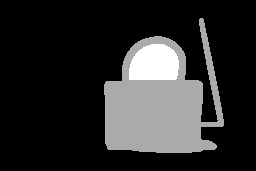
2 つのオブジェクトがマージされ、3 つのオブジェクトが残った点に注目してください:
Objects (id: bounding-box centroid area mean-color):
  0: 256x171+0+0 118.0,80.4 33557 srgb(0,0,0)
  2: 120x135+104+18 159.5,106.5 8690 srgb(255,255,255)
  3: 50x36+129+44 154.2,63.4 1529 srgb(0,0,0)
既定では、ラベル付けされた画像はグレースケールです。代わりに、ラベル画像のオブジェクト色をソース画像の mean-color で置き換えられます。コマンドラインに -define connected-components:mean-color=true 設定を加えるだけです。
しきい値には任意で範囲を含められます(例: -define connected-components:area-threshold=410-1600)。背景オブジェクトを保持するには、-define connected-components:background-id=object-id で識別します。既定の背景オブジェクトは最大面積のオブジェクトです。
area に加えて、次のしきい値指標がサポートされています:
- connected-components:angle-threshold(等価楕円から)
- connected-components:circularity-threshold(4piarea/perimeter^2)
- connected-components:diameter-threshold(sqrt(4*area/pi))
- connected-components:eccentricity-threshold(等価楕円から)
- connected-components:major-axis-threshold(等価楕円からの直径)
- connected-components:minor-axis-threshold(等価楕円からの直径)
- connected-components:perimeter-threshold
特定のオブジェクトを除去したいことがあります。-define connected-components:remove-ids=list-of-ids を使います(例: -define connected-components:remove-ids=2,4-5)。または -define connected-components:keep-ids=list-of-ids を使ってこれらのオブジェクトを保持し、他をすべてマージします。便宜上、背景オブジェクトに加えて上位のオブジェクトを保持するには、-define connected-components:keep-top=number-of-objects オプションを使います。オブジェクト ID の代わりに、色で識別されるオブジェクトを除去・保持することもできます(例: -define connected-components:keep-colors=red;green;blue)。
画像内のオブジェクトは均質に見えても、わずかに異なる色値を持つことがあります。既定では、完全に一致するピクセルのみが特定のオブジェクトの一部とみなされます。オブジェクト内のわずかな色の変動には -fuzz を使います。たとえば、
magick star-map.png -fuzz 5% -define connected-components:verbose=true \
  -define connected-components:mean-color=true -connected-components 4 stars.gif
連結成分
アルゴリズムは成分のピクセルを通常の行・列順に進み、上または左の成分を探します。左上の成分には、マージする上・左の成分がありません。その結果、回転し、連結成分を繰り返し、回転を戻す必要がある特殊なケースがあります。たとえば、
 magick  \
  objects.gif  \
  -define connected-components:verbose=true \
  -define connected-components:area-threshold=6000 \
  -virtual-pixel None \
  -connected-components 4 -rotate 180 \
  -connected-components 4 -rotate -180 \
  objects.png